
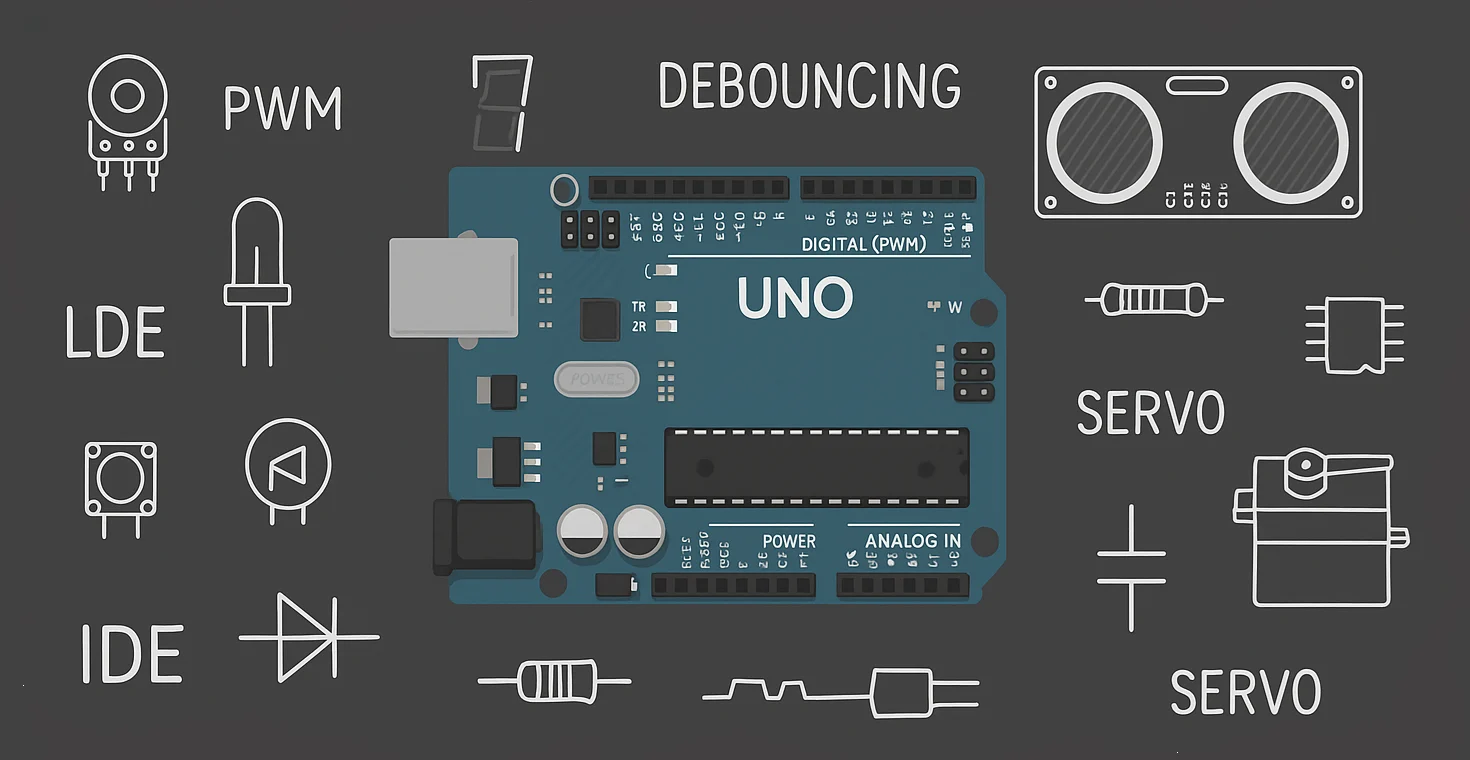
Chapter 12
Up to now, Arduino has been doing a lot of things silently.
reading inputs
making decisions
changing pin states
But you couldn’t see what it was thinking.
That’s a problem.
This chapter introduces the
Your First Debug Tool
🧠 Why We Need Debugging
When something doesn’t work, beginners often think:

But in electronics, problems usually come from:
wiring mistakes
wrong assumptions
unexpected values
timing issues
The Serial Monitor helps you answer one critical question:
🔌 What Is Serial Communication?
Serial communication is a way for Arduino to send text data to your computer over USB.
Think of it as:
Arduino talking to you using messages.
We only care that it works.
🛠️ Starting the Serial Monitor
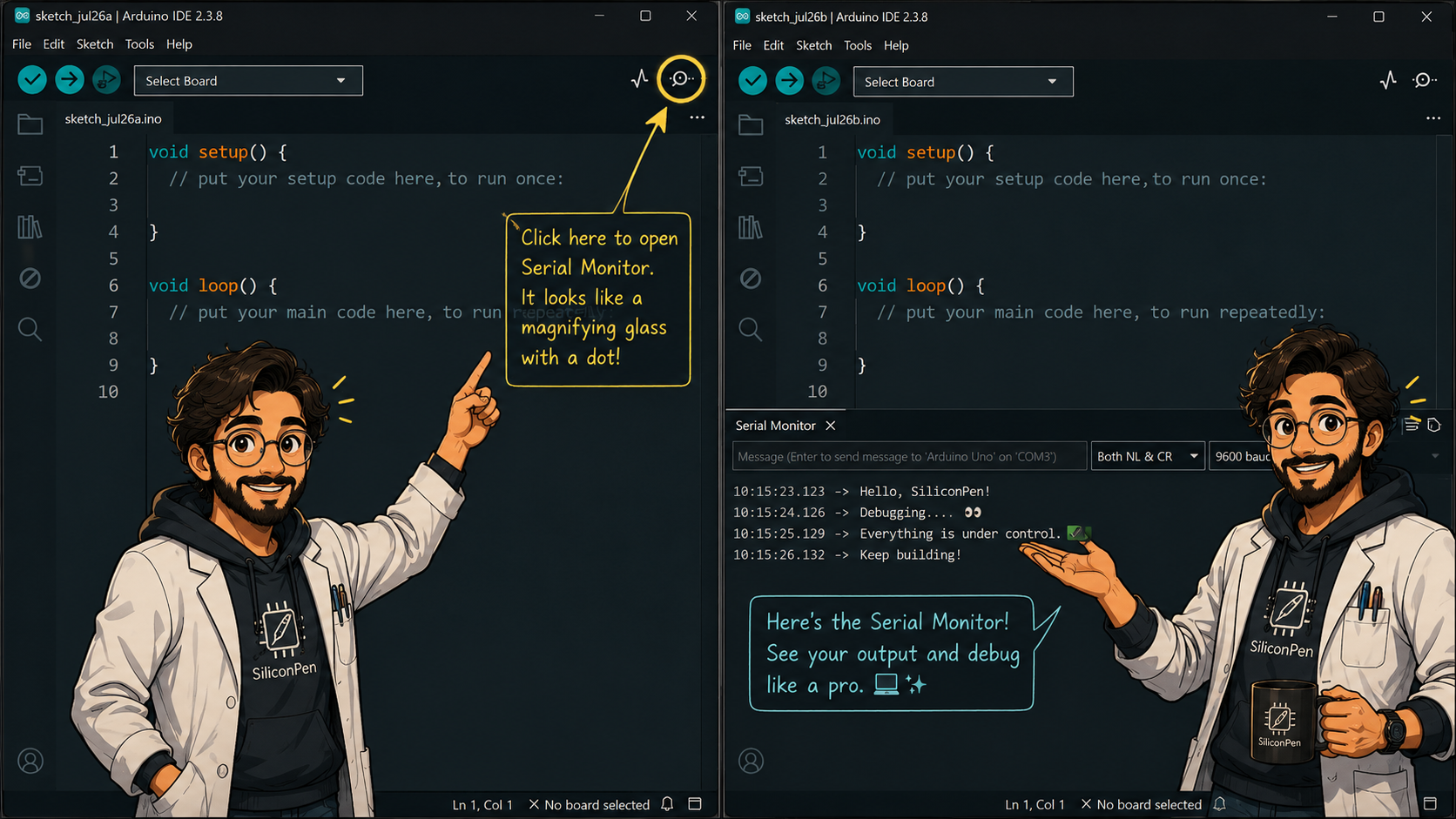
There are two steps, and both are mandatory.
1️⃣ Initialize Serial Communication
Serial.begin(9600);
This tells Arduino:
“I’m going to talk to the computer.”
The number 9600 is the communication speed (baud rate).
For now, just remember: the number must match in both places.
2️⃣ Open the Serial Monitor
Click the Serial Monitor icon in the top-right of the Arduino IDE
Or press Ctrl + Shift + M
Make sure the baud rate at the bottom of the Serial Monitor is also set to 9600.
🖨️ Printing Data
The most common command you’ll use is:
Serial.println("Hello");This sends text to the Serial Monitor and moves to a new line.
You can also print numbers:
int value = analogRead(A0);
Serial.println(value);
This is how you’ve been seeing sensor values so far.
🧪 Why Serial Monitor Is So Powerful
With Serial prints, you can:
see button states
see sensor readings
confirm if a condition is true
check timing behavior
debug logic errors
Instead of guessing, you observe.
🔁 Serial Monitor in a Loop
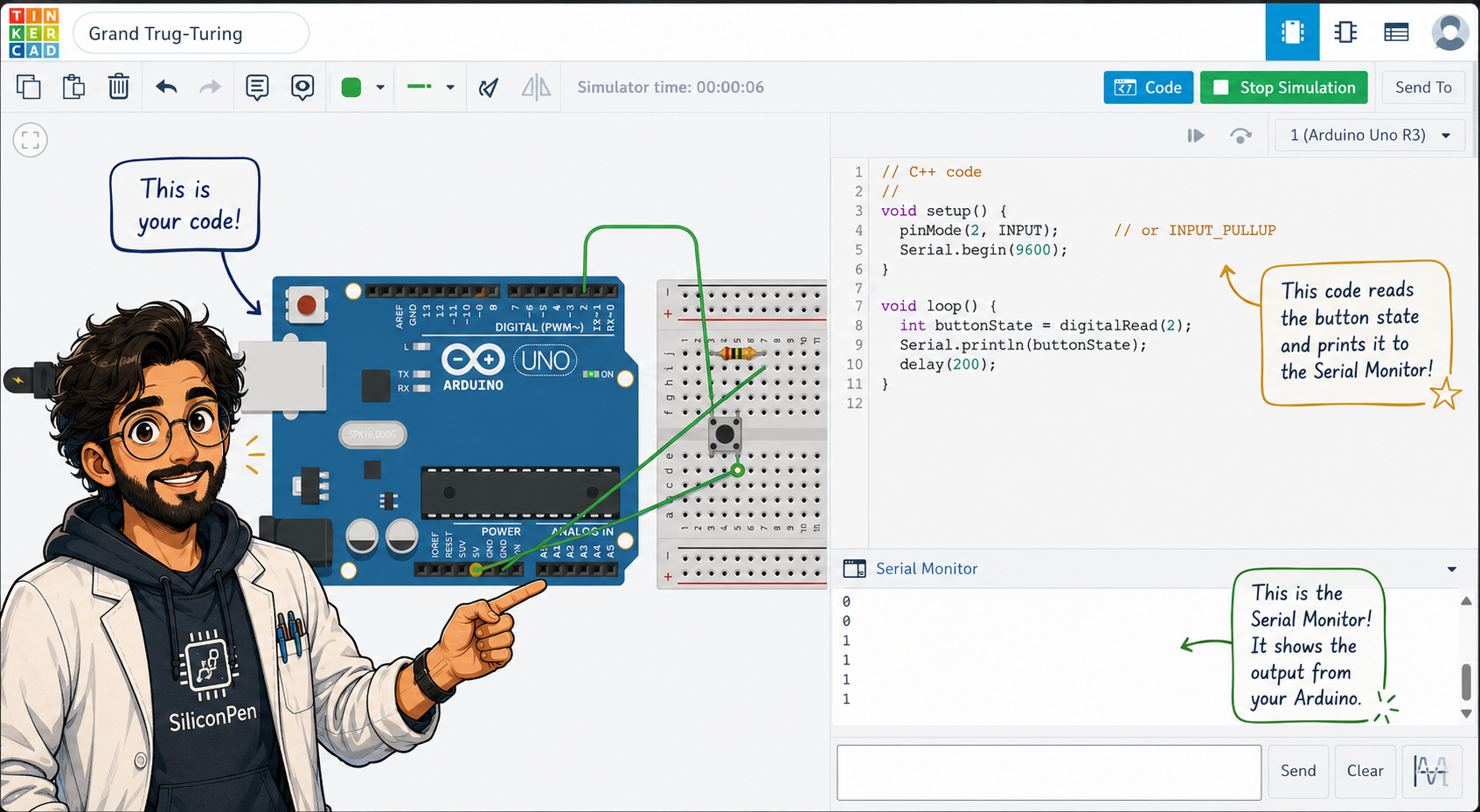
Example:
void loop() {
  int buttonState = digitalRead(2);
  Serial.println(buttonState);
  delay(200);
}
Now you can see:
1when HIGH0when LOW
This turns invisible logic into visible data.
What is the primary purpose of the Serial Monitor?
Which function is commonly used to send text to the Serial Monitor?
⚠️ Common Beginner Issues
Forgetting
Serial.begin()Baud rate mismatch
Printing too fast (spams output)
Thinking Serial affects logic (it doesn’t)
If nothing prints:
check the baud rate first
then check the code
📌 What Comes Next
You now have:
inputs
outputs
timing
debugging
Next, we clean up how we write code so projects don’t turn messy.
Comments
Share your thoughts, questions, or corrections below. Be kind and keep it on-topic ✨